

Tester guide
Set up the 6529 validator
Download it from the download page. The app walks you through the rest.
Three steps
Step 1: Open it
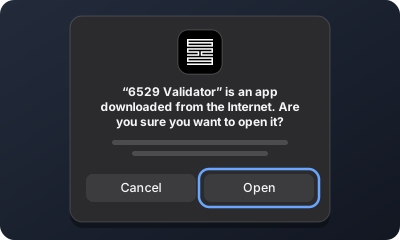
Drag 6529 Validator to Applications, then open it from Applications, never from the disk image. When macOS asks if you're sure, press Open.
What you'll see (a drawing) Step 2: Follow the app
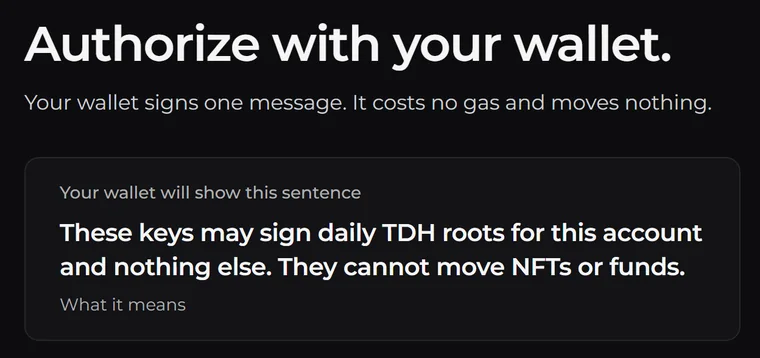
It makes this computer's key and asks your wallet to sign once. That sends no transaction and costs nothing. If your wallet is in another browser, press Copy sign-in link and open the link there. If it's on your phone, choose Your phone (Use your phone in the app's window), paste the wallet's address and scan the code.
From the app Step 3: Leave it running
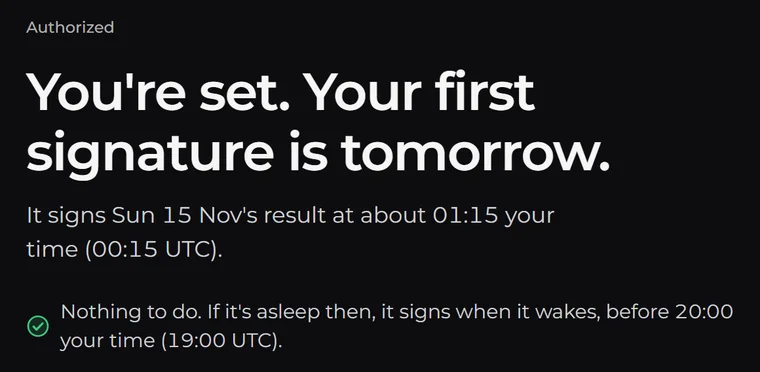
It signs once a day by itself.
From the app
What else you'll see on a Mac
- macOS says Background Items Added. That is the validator, which runs whenever you are logged in.
- While the validator service starts, the app shows each step and what it is doing now. If one takes too long, the app says which, with Restart the validator service and Show the log.
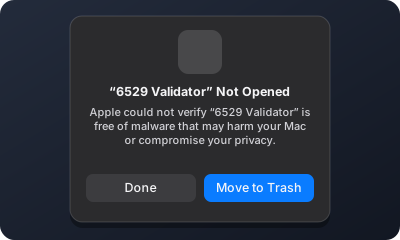
- If macOS says it could not verify the app, or that Apple can't check it, press Move to Trash and tell us. Don't press Open Anyway in System Settings.
What you need
- A 64-bit computer: a Mac with macOS 11 or newer, a Windows 10 or 11 PC, or a Linux computer, a Raspberry Pi 4 or 5 among them.
- One that stays on, at home or in your office. A cloud server works too.
Send feedback
Post your results in the Ministry of Validation wave, using this template:
Computer and system:
File installed:
Home or data center:
Tor, on or off:
What happened:
Times, in UTC:
In the app, Report a problem (in 6529's logo menu) makes a cleaned report with a box for your words, for you to paste there. It leaves out your account, addresses and names. Don't post raw logs or status files: they show your keys and your account.
6529 never starts a DM with you or asks for a seed phrase.
More
Keep it awake
The validator signs while the computer is awake, until signing closes at 19:00 UTC. A computer that sleeps through that misses the day.
- Windows: Settings › System › Power & battery, and set sleep to never when plugged in.
- Mac: in Terminal, run
sudo pmset -c sleep 0. The app signs only while you are logged in. - Linux desktop: Settings › Power, and turn Automatic Suspend off.
- Laptops: keep it plugged in with the lid open.
If the computer can't stay on all day, keep it awake for about 15 minutes from 00:15 UTC, or for 15 minutes from when it wakes. The day's data is ready 13 to 20 minutes after 00:00 UTC, the validator signs within a minute or two of that, and it sends its vote right after it signs. Leave it on until about 01:15 UTC and the day's check against 6529.io runs too.
How long it takes to be ready
You add no peers. The validator finds 6529's sentries by itself and downloads the TDH history from the network. It accepts that history only if it matches the checkpoint built into this release, from 6 November.
In 6529's tests of rc.10 on 7 November, a new install was ready in about 21 minutes through Tor, and in about 16 with Tor off. The validator reads every Ethereum block since the release's checkpoint, so a join takes a little longer each day. Leave the validator running until the app says it is ready.
Where it lives
| System | The app | Its data folder |
|---|---|---|
| Mac | Applications › 6529 Validator | ~/Library/Application Support/6529-validator |
| Windows | Start menu › 6529 Validator | C:\ProgramData\6529-validator |
.deb | Your apps › 6529 Validator, which opens its page in your browser | /var/lib/6529-validator |
| AppImage | The file itself | ~/.local/share/6529-validator |
The data folder holds your key. Never copy it to another computer.
To check which build you have:
| System | Command |
|---|---|
| Mac (Terminal) | "/Applications/6529 Validator.app/Contents/Resources/validator" --version |
| Windows (a new PowerShell window) | validator --version |
.deb | validator --version |
| AppImage | ./6529-Validator-0.1.0-x86_64.AppImage --version |
It prints validator 0.1.0-rc.10 (f0a3440, TDH v1.4). If it shows another commit, tell us.
Stop, pause or uninstall
On a Mac or a Windows PC, 6529's logo sits in the menu bar or by the clock (click the ^ arrow if it is hidden). Green means signed, grey waiting, rose that something needs you, and a hollow ring stopped or paused. Its menu:
- Pause signing stops signing and keeps the validator checking. Resume signing starts again.
- Stop the validator service stops it until you press Start the validator service, through restarts and updates too.
The validator signs whether the app's window is open or not.
| System | Stop | Start | Uninstall |
|---|---|---|---|
| Mac | Stop the validator service in the logo's menu | Start the validator service | Stop it, then drag the app to the Trash |
| Windows | Stop the validator service in the logo's menu | Start the validator service | Settings › Apps › 6529 Validator › Uninstall |
.deb | sudo systemctl stop 6529-validator | sudo systemctl start 6529-validator | sudo apt remove 6529-validator |
| AppImage | Close it, or pkill -f "validator run" | Open it | Delete the file |
To stop for good, withdraw the authorization first, while the validator runs: on its page, open Keys, press Stop and sign. Uninstalling keeps the data folder. Delete it by hand, or run sudo apt purge 6529-validator.
Updates
Once an hour the validator reads 6529's signed list of releases. When a newer one is out, the top bar says so, and the Update page offers Update now. It downloads this computer's file and checks it against the signed list. The app installs it only when you press Install, and never by itself. On Linux the page shows the apt command to run.
Your key
- The validator makes its key on this computer. Each day the key signs your account's TDH result. It can't move NFTs or funds, and it isn't your wallet.
- One key, one computer. Never copy the data folder, and never restore it from a backup, a disk image or a VM snapshot. A validator that sees its key sign on another computer stops signing and says what to do. Two copies that both sign vote twice: your account then stops counting for at least 30 days.
- Don't back up the key. If a computer is lost or replaced, install the validator on another one, and one signature from your wallet swaps its key in. On the page, open Keys and stop the lost computer's key.
- 6529 never asks for your key, and the validator never sends it anywhere.
Linux and the terminal
Linux needs glibc 2.35 or newer: Ubuntu 22.04, Debian 12, Linux Mint 21, Raspberry Pi OS Bookworm (64-bit) or newer. In the folder with the file, run this on x86-64:
sudo apt install ./6529-validator_0.1.0_amd64.deb
Or this on ARM64:
sudo apt install ./6529-validator_0.1.0_arm64.deb
It installs a service that starts with the computer. Then open 6529 Validator from your apps, or run validator open, and follow the page. On a computer with no screen, follow the steps the install prints.
The AppImage is for other Linux desktops on x86-64. Make it executable with chmod +x 6529-Validator-0.1.0-x86_64.AppImage, then open it. It signs only while it is open.
Each terminal archive holds the program and its install guide, in docs/install/. On a cloud server, keep the defaults, with Tor on.
Known issues
The known issues list each one with its workaround. A new install must start before about 2026-11-23 03:30 UTC, and 0.1.0 stops signing on 1 December.